

Customer cards
Everyone who books with you or buys from you has a card in Customers. Customers book online without an account; their card is created the first time they book.
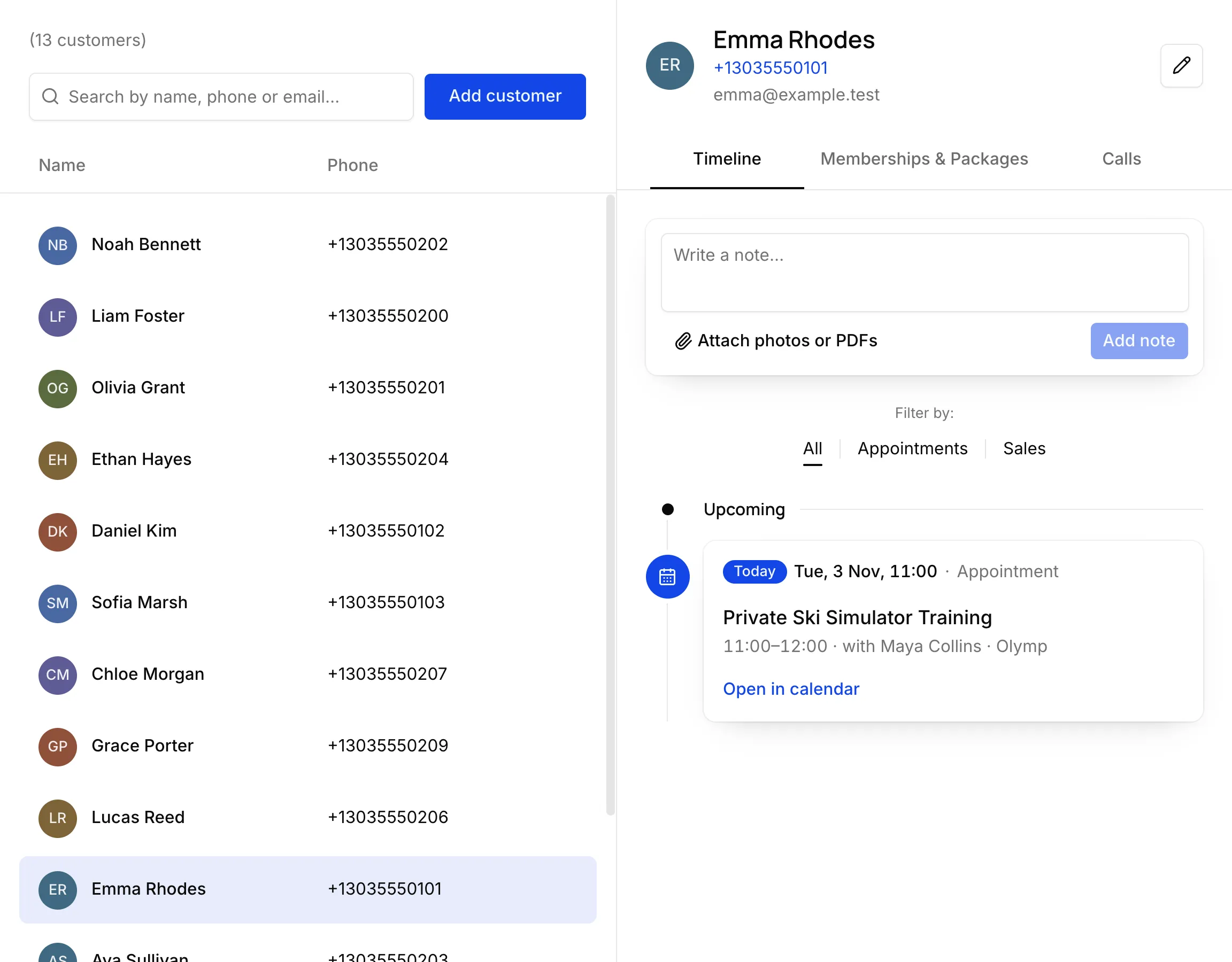
Add a customer
Section titled “Add a customer”- In Customers, choose Add customer.
- Enter their First name, Last name, Phone and Email. Address, date of birth and who referred them are optional.
- Choose Create customer.
The customer card
Section titled “The customer card”- Timeline — upcoming and past appointments and sales, newest first. Filter by Appointments or Sales.
- Notes — write a note at the top of the timeline, and attach photos or PDFs to it. Only your staff see notes.
- Memberships & Packages — what the customer has bought and what’s left.
- Calls — calls and texts with them, once a phone system is connected.
Choose the pencil at the top right to edit their details and messaging preferences.